FileZilla
This tutorial will show you how to use FileZilla to upload your website. FileZilla is a powerful and free software for transferring files over the Internet. FileZilla is a very popular FTP client and is used by webmasters from all over the world. Here you can download FileZilla Software. FileZilla is fully compatible with our webhosting.
How to use FileZilla FTP Client
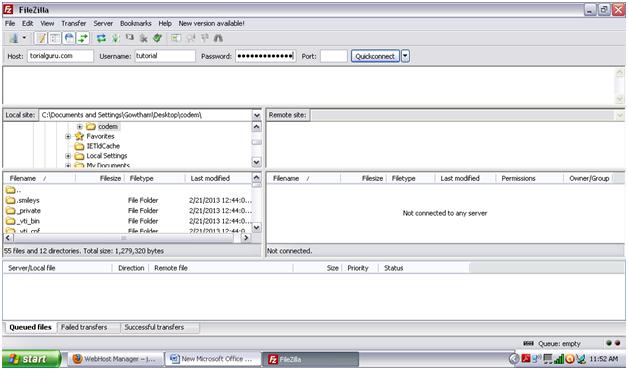
Once you have the FileZilla client already downloaded and activated on your computer, enter your domain name in the address field (you can also use the server's IP address). The username and the password you need to type in are the same as the ones you use to log in to your cPanel. The FTP port is 21.
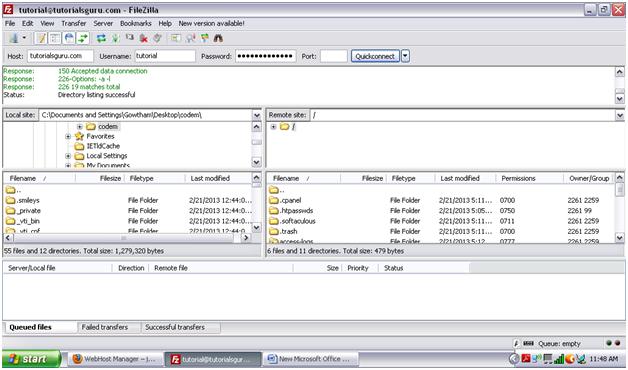
Click Quickconnect and the file listing will appear.
Then, select the files to be uploaded and drag-and-drop them under the www folder. Wait for the transfer to be completed.
If you are behind a firewall and/or a router you will need to use a Passive mode for FTP to get a stable connection.
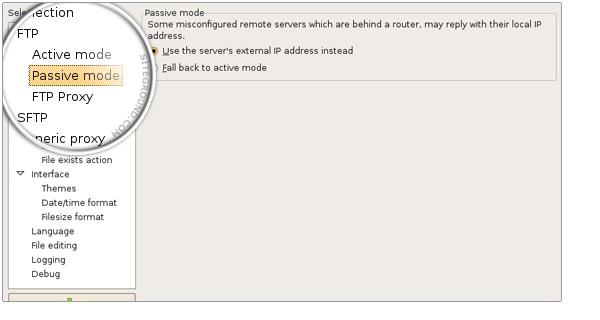
You can configure this setting as shown bellow:
Open FileZilla and go to Edit -> Settings. In the Connections section, click FTP and set the Passive mode option to Use the server's external IP address instead.
That is it Done.. see your site and it will be up nad running.
Was this answer helpful?
Also Read
Powered by WHMCompleteSolution